agent-spendingSeptember 16, 2026
How to give your AI agent a credit card (without giving it your credit card)
Give your AI agent a spending account for paid tools, with its own key, category restrictions and spending ceilings. Here is how to set it up with Vaaya.
Give your AI agent access to a bounded spending account. With Vaaya, it can pay for metered tools using available prepaid or promotional credit, or an eligible credit line, without receiving your card number. Set the agent's permissions and budget, then require a maximum cost on each paid tool call. Vaaya does not issue the agent a general-purpose credit card; it gives it a way to buy services through its account. See Vaaya's funding and pricing details.

Conceptual generated artwork illustrating agent spending. This image is not a product screenshot or evidence of a transaction.
What does an AI agent actually need to buy?
A research agent might need a search result, the contents of a webpage and a company record. A creative assistant might need an image generator or a video model. Each step can require a paid service, even when the assistant you are chatting with already has a subscription.
Vaaya connects those purchases to one account. Your agent asks which service can do the work, receives the call details and price, and executes the call within a stated ceiling. You do not need to open an account with each supported provider and give the agent all their API keys. Vaaya's documentation explains the available tools and connection options.
We gave an agent a 2¢ limit. What happened?
For this article, we asked an agent to find Instinct's official website using Exa search through Vaaya. We set max_cost_cents to 2. The call succeeded, returned Instinct's actual homepage, and reported a 1¢ charge. It also returned Instinct's sign-in and terms pages.
Then we sent the same search parameters with a 0¢ ceiling. Vaaya returned over_max and a 0¢ charge. This was an actual refusal, not an illustration of one.
| Request | Maximum allowed | Actual outcome | Charge returned |
|---|---|---|---|
| Find Instinct's official website | 2¢ | Success; official site returned | 1¢ |
| Same search with no spending allowed | 0¢ | Refused: over_max |
0¢ |
Here are the relevant fields from the refusal response:
{
  "ok": false,
  "error": "over_max",
  "data": {
    "error": "over_max",
    "message": "price is 1¢ but max_cost_cents was 0",
    "price_cents": 1
  },
  "charged_cents": 0,
  "status": 402
}
Inspect the artifacts: successful search and charge, refused request, and captured service listing. These files preserve the request and relevant returned fields; account balances and provider internals are removed. They are tool-response excerpts, not signed usage statements.
The calls were performed for this article on September 16, 2026, Pacific time; the downloads record their capture times in UTC. The public catalog listed exa/search at 1¢ when captured. Prices can change, so check the current quote before repeating the example. This demonstrates a successful paid lookup and a ceiling refusal; it does not test every spending control.
How do you set it up?
Connect your assistant. For supported clients such as Claude Code, Cursor and Codex, start with:
npx @vaaya/mcp install
Follow the installer and authentication instructions for your client. The setup documentation also covers other connection methods.
Give the agent its own identity. If you want a separate budget and service restrictions for this agent, create a named developer API key and configure the agent to use it. Keep the key in its credential store, outside shared prompts, screenshots and repositories. A standard OAuth-connected MCP session does not automatically inherit the limits of a separate API key you created.
Check the account's available spending power. Use the account view before starting paid work. Prepaid funds, promotional credit and an eligible credit line have different funding conditions. The amount currently available on the account is what matters; adding a card does not mean unlimited spending.
Start with one small task. Ask the agent to find a public page and return the result, the service used and the amount charged. That gives you something concrete to inspect before handing it a longer workflow.
Which limits should the owner set?
There are two separate decisions: the owner decides what the agent may spend overall, and the agent supplies a ceiling for a particular call.
For a dedicated API key, configure its allowed service categories and a spending ceiling for a daily, weekly or monthly period. A research agent might only need Search and Scraping. A media assistant needs a different selection. Review the actual settings on the key instead of assuming its name restricts what it can do.
Here is an illustrative policy, not a screenshot of an account:
| Control | Example | Who chooses it? |
|---|---|---|
| Agent identity | research-assistant |
Account owner |
| Allowed categories | Search and Scraping | Account owner |
| Spending ceiling | $10 per month | Account owner |
| Maximum for one call | 5 cents | Agent, within the user's instructions |
The account's available funds and credit also constrain spending across agents. The spending controls guide explains the relationship between key restrictions, call ceilings and account limits.
A prompt saying “be careful with money” is useful guidance. Configure the key as well. A per-call number chosen by the agent cannot replace an owner-controlled budget: without that separate restriction, the agent could choose a higher ceiling next time.
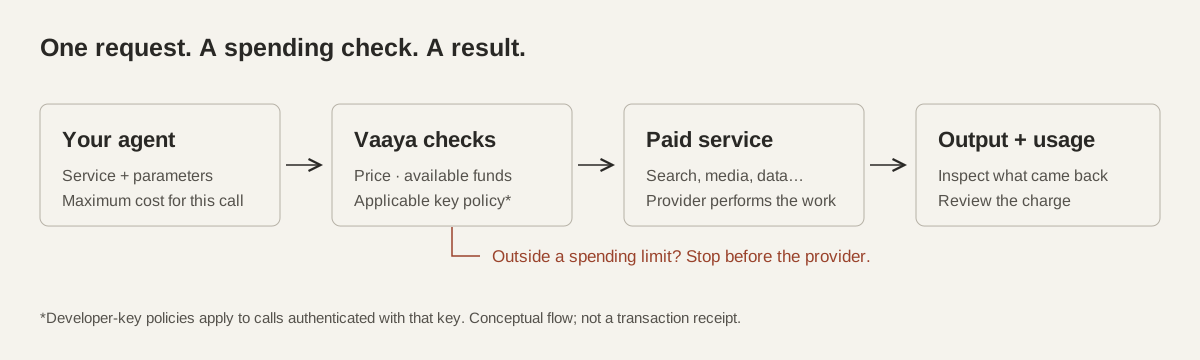
Conceptual flow. The spending check runs before the provider; key policies apply when that key authenticates the call.
What does a capped tool call look like?
After consult returns a service and its current parameters, the agent calls use with a maximum price. These are the service, parameters and ceiling used in our successful lookup:
{
  "service": "exa",
  "action": "search",
  "params": {
    "query": "Instinct personal AI assistant official website",
    "type": "auto",
    "numResults": 3,
    "include_domains": ["instinct.com"]
  },
  "max_cost_cents": 2
}
The listing showed a one-cent price; the request permits at most two cents. A ceiling is the most the agent permits for that call, not the amount it will necessarily pay. If the current quote is above the ceiling, Vaaya refuses the request with over_max before contacting the provider. The tool reference documents this check.
For a long-running job, preserve its job ID and check the result. Starting the generation again creates another job; checking the existing result should be the next step.
What happens if something fails or the balance runs out?
A refused call is not a completed purchase. If the available funds cannot cover the next request, Vaaya returns a funding error. The agent should surface that error and the unfinished step, then continue only after funding or an appropriate change to the task. Creating a top-up checkout link does not itself pay for the top-up.
Vaaya does not charge for a failed service call. That does not make an unsuccessful multi-step task free. If a search succeeds, a scrape succeeds and a later generation fails, the successful earlier calls can still be billed. Review each output and charge, even if the overall task does not finish. Vaaya's pricing page describes service-call billing.
How does Instinct × Vaaya fit into this?
If you use Instinct through WhatsApp or iMessage, the useful connection is straightforward: you text the task, and an Instinct agent can obtain a Vaaya account to buy the tools needed to complete it. The conversation stays in your messaging app while Vaaya handles access to supported paid services. The agent still needs permission for additional funding. A Vaaya top-up returns a checkout link; it does not automatically charge a card stored in Instinct. If Instinct completes that checkout with your saved card, authorize the top-up amount first.
Can the same account buy a flight or a physical product?
Not yet. Buying at stores, including flights and physical products, is coming soon. It will be a separate flow: an explicitly authorized purchase will use an actual payment card, and the merchant's total will not be paid from the metered-tools wallet. Approving API spending should not be treated as approval to buy an unrelated product. Keep the item, merchant and total explicit.
Questions
Does Vaaya give my AI agent a real credit card?
No. The Vaaya account described here pays for metered services. It does not issue your agent a general-purpose credit card or give it your card number.
Can my agent use Vaaya without seeing my card details?
Yes. The agent authenticates to Vaaya and uses the account's available spending power. Any payment details used to fund or settle that account stay outside the agent's tool requests.
Can I set a separate budget for each agent?
Yes. Give each agent a dedicated developer API key and configure its spending ceiling and allowed categories. Those key policies do not automatically apply to an unrelated OAuth connection.
What happens when a paid API call exceeds its ceiling?
Vaaya refuses a call whose quoted price exceeds its supplied max_cost_cents before contacting the provider. That refused call is not charged.
Does a failed task mean I pay nothing?
No. A failed service call is not charged, but successful earlier calls in the task can still cost money. Track the individual calls and their outputs when reviewing a workflow's spend.