videoSeptember 16, 2026
How to animate old family photos and make them move
Keep the original scan, ask for subtle movement and inspect every face. See an archival family portrait, its actual AI animation, the exact prompt and recorded cost.
To animate an old family photo, give your AI agent a clear digital copy and ask for a short, silent video with small movements such as blinking or breathing. Keep the original scan untouched, use an image-to-video model and review every face before sharing the result. Vaaya lets a connected agent find and run that video tool within a spending limit. The movement is generated from the still image; it is not recovered footage of how your relatives actually moved.
Original generated illustration. The actual archival photograph and animation are below.
An old family portrait, before and after animation
For this demonstration, we used the Library of Congress image titled Family portrait of an unidentified man and his two daughters. The catalog credits V. Dieness, Irkutsk, and dates it November 28, 1885. Its rights statement says “No known restrictions on reproduction.” The people remain unidentified in the catalog. Original photograph and catalog record.
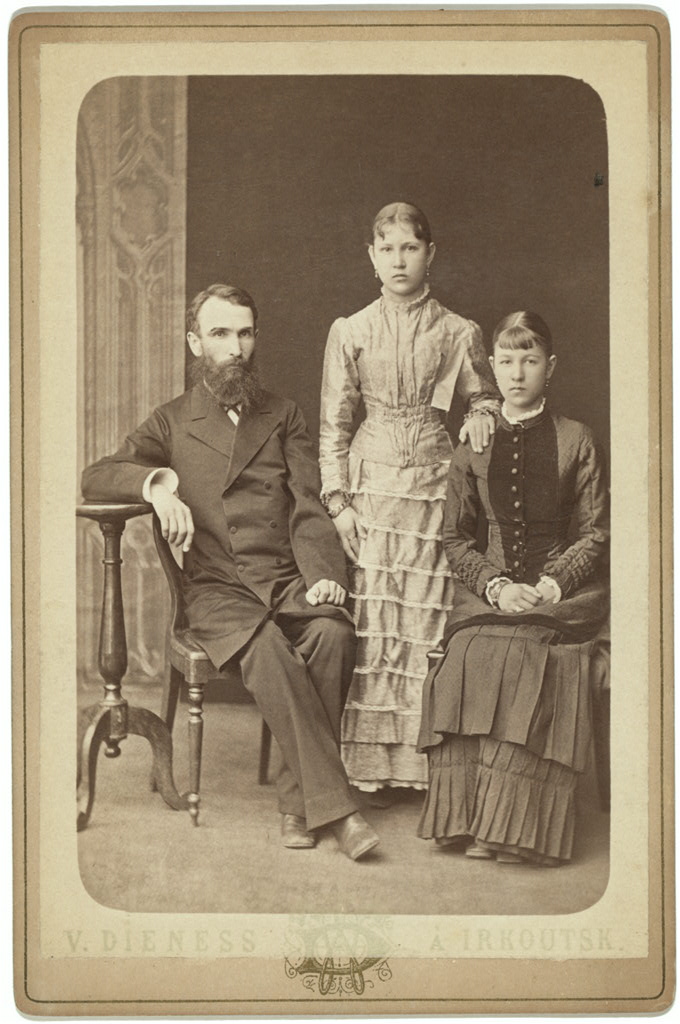
Before: V. Dieness, Irkutsk; Library of Congress, Meeting of Frontiers; George Kennan Papers. The archive's 680 × 1,024 JPEG was supplied without retouching. Download the input JPEG.
We asked Seedance 2.0 Fast, through Vaaya, to animate the portrait for five seconds with no audio. The requested motion was deliberately small: occasional blinks and very slight breathing, with the camera and poses kept still.
After: an AI animation created for this article. The movements are invented; the archive did not produce or endorse this clip.
The downloaded video is 5.04 seconds, 834 × 1,112 pixels and 24 frames per second, with no audio track. It keeps the three-person pose and sepia appearance, with small facial changes. It also redraws fine facial detail and changes the framing: automatic aspect selection produced a 3:4 video from the taller source scan. This is why viewing the original beside the result matters, even when the motion is restrained.
You can inspect the exact request, recorded result and source provenance. Both the photograph and downloaded MP4 are hosted with this page. This is a real generation, not a simulated player or a stock video presented as our result.
Start with the original, not an enhanced copy of a copy
Find the clearest scan you have. If you are starting with a print, capture the whole photograph without glare or clipping the edges. Avoid repeatedly saving and forwarding a small compressed version before the animation step.
Keep an untouched master scan and make a separate working copy for editing. The Library of Congress scanning guide recommends separating a preservation master from a working image. Save names, dates and any notes from the back of the print alongside it; an animation should not replace that record.
If the print is fragile, do not force it through a document feeder just to get a scan. The National Archives' digitization guidance advises avoiding automatic-feed scanners for fragile or valuable materials and retaining the physical originals after digitization.
What should you ask the agent to do?
Here is the exact prompt used for the clip above:
Animate this historical family portrait for five seconds with extremely restrained, natural movement. Add only occasional gentle eye blinks and very slight breathing. Preserve the three people, their facial features, ages, original serious expressions, hairstyles, clothing, poses and hand positions. Keep the original sepia tone, photographic grain, studio background, cabinet-card border and printed lettering. Keep the camera completely locked. No speaking, lip movement, smiles, head turns, added gestures, new people, colorization, zooms or cuts.
For a photo from your own album, a reusable instruction is:
Animate this copy of my family photo into one short, silent clip. Keep the original tone, framing, clothes and expressions. Use only subtle blinking and breathing; keep the camera still. Do not add speech, gestures or new people. Tell me the model and cost before running it, stay within my approved budget and return the original alongside the finished video.
A small request makes the result easier to judge. Asking everyone to wave, turn their head and smile adds more invented movement, especially where the photograph does not show the side of a face or a hand clearly.
Should you restore or colorize it first?
You do not need to colorize a photo to animate it. Black-and-white and sepia images can be supplied directly to an image-to-video model that accepts their file format. In this example, we asked the model to retain the portrait's original appearance.
If damage obscures a face, try to obtain a better scan before asking a model to invent missing detail. Restoration, colorization and animation are separate decisions. An image that looks sharper may contain new facial detail the original never recorded; a plausible color is not necessarily the historical color.
Keep any restored or colorized version as a separate file. Compare it with the master before using it as the input to another generation. Otherwise, changes can accumulate while the result still feels familiar.
How does the agent run the animation through Vaaya?
The agent first chooses a compatible model and checks its current requirements. The Seedance 2.0 Fast endpoint used here accepts JPEG, PNG and WebP images up to 30 MB. The provider's input schema documents its settings; other models have different limits and parameter names.
For this demonstration, the agent staged the JPEG with fal/upload, sent the returned image URL to fal/generate and kept the asynchronous job ID. It requested a five-second silent clip using the 720p setting and automatic framing from the source image.
After submission, the agent checked that same job with result until the video was ready, then downloaded the MP4. Submitting generate again would start another paid attempt. The previous guide covers the mechanics of turning a photo into a video with your AI agent.
This run cost $1.36: 1¢ for staging the photograph and $1.35 for one successful generation. The video call had a $1.50 ceiling. See the upload record and generation result. Recorded September 16, 2026, Pacific time; artifact timestamps use UTC. These are observed charges for this attempt, not a guaranteed price for other models or future runs.
What should you check before sharing it?
Watch the full clip at normal speed, then pause on each person. A file can render successfully and still change something important about a face.
| Check | What to look for | If it looks wrong |
|---|---|---|
| Eyes and mouth | Warped eyelids, changing teeth or a new expression | Reduce movement; reject an altered likeness. |
| Face and hair | A shifting outline, changed age or invented detail | Compare with the original, not memory alone. |
| Hands and clothing | Extra fingers, moving buttons or bending fabric edges | Ask for a still pose and less body motion. |
| Group composition | People merging, disappearing or moving behind each other | Try a clearer source or animate a separate crop as a labeled experiment. |
| Framing and tone | A new zoom, crop, color or background | Request the original framing and appearance. |
These are review steps, not settings that guarantee a perfect result. If a version changes the person too much, keeping the still photograph is a good outcome too.
How does this work with Instinct × Vaaya?
With Instinct on WhatsApp or iMessage, the request can be as simple as: “Make this old family photo move very gently. Keep it sepia, add no speech and show me the result before sharing it.” Where your Instinct setup has access to Vaaya, the assistant can use that connection to find and run the animation tool within your approved budget. This is a suggested instruction, not a captured chat. The example on this page was made through Vaaya's tool call using a public archival image.
For a personal family photograph, decide which service may receive it and who should see the result. Showing relatives the original and the animation together makes the changes easier to understand. Ask before posting a version featuring living family members, and label shared clips as AI-generated animation from a still photo.
Save the original, the prompt and the version you chose. That lets you enjoy the movement while keeping the photograph's history intact.
Questions
How can I make an old family photo move?
Scan or photograph it, keep an untouched master copy and give a working copy to an AI agent with an image-to-video tool. Ask for a short, silent clip with subtle blinking or breathing, then inspect each face before saving or sharing it.
Does animating a photo recover someone's real expressions?
No. The model invents motion from the still image and your prompt. A blink, smile or gesture in the result is generated, not recovered evidence of how the person moved.
Do I need to colorize a black-and-white photo before animating it?
No. You can request motion while retaining the original black-and-white or sepia appearance. Colorization is a separate creative decision and can introduce guessed colors.
Can I animate a group family portrait?
Yes, but inspect every person separately. Small, blurred or partly hidden faces give the model less visible detail to work with. Begin with restrained motion and keep the unedited source alongside the result.
Will AI preserve every face exactly?
No model setting or prompt guarantees that. Compare eyes, teeth, facial outlines and hands throughout the clip. Reject a version if it changes a person in a way you are uncomfortable with.